How to Build Your Portfolio?
Building a portfolio using this tool is simple and completely free. You do not need any coding skills or technical knowledge. This tool handles everything for you, allowing you to focus only on adding your information and showcasing your work.
To get started, click on the Start Building button on the home page. This will take you to the create page, where you will find a form. Simply fill in your details in the corresponding fields to generate your portfolio.
Personal Information
Start by entering your full name as you would like it to appear on your portfolio. Using your real name helps maintain a professional identity and ensures consistency across your resume and social profiles.
Professional Details
Add your job profession to clearly define your role or career goal. Then write a short bio that highlights your experience, key skills, and interests. Keep it concise and engaging so visitors can quickly understand who you are and what you do.
Profile Image
You can optionally upload a professional photo. A clear and well-lit headshot helps personalize your portfolio and creates a stronger impression. If you don't want to add your image, it is okay; there is no issue.
Contact Information
Provide a valid email address so recruiters or clients can contact you easily. You can also include your phone number.
Resume
You need to upload your resume in google drive and share it with everyone. Then, copy the shareable link and paste it in the resume field. This allows visitors to easily access your resume directly from your portfolio.
Skills
Add your key skills to highlight your expertise and areas of proficiency. This helps recruiters quickly identify your strengths and suitability for specific roles. You can add as many skills as you want, and they will be displayed in a visually appealing way on your portfolio. You can add skill by typing the skill name and pressing the enter key.
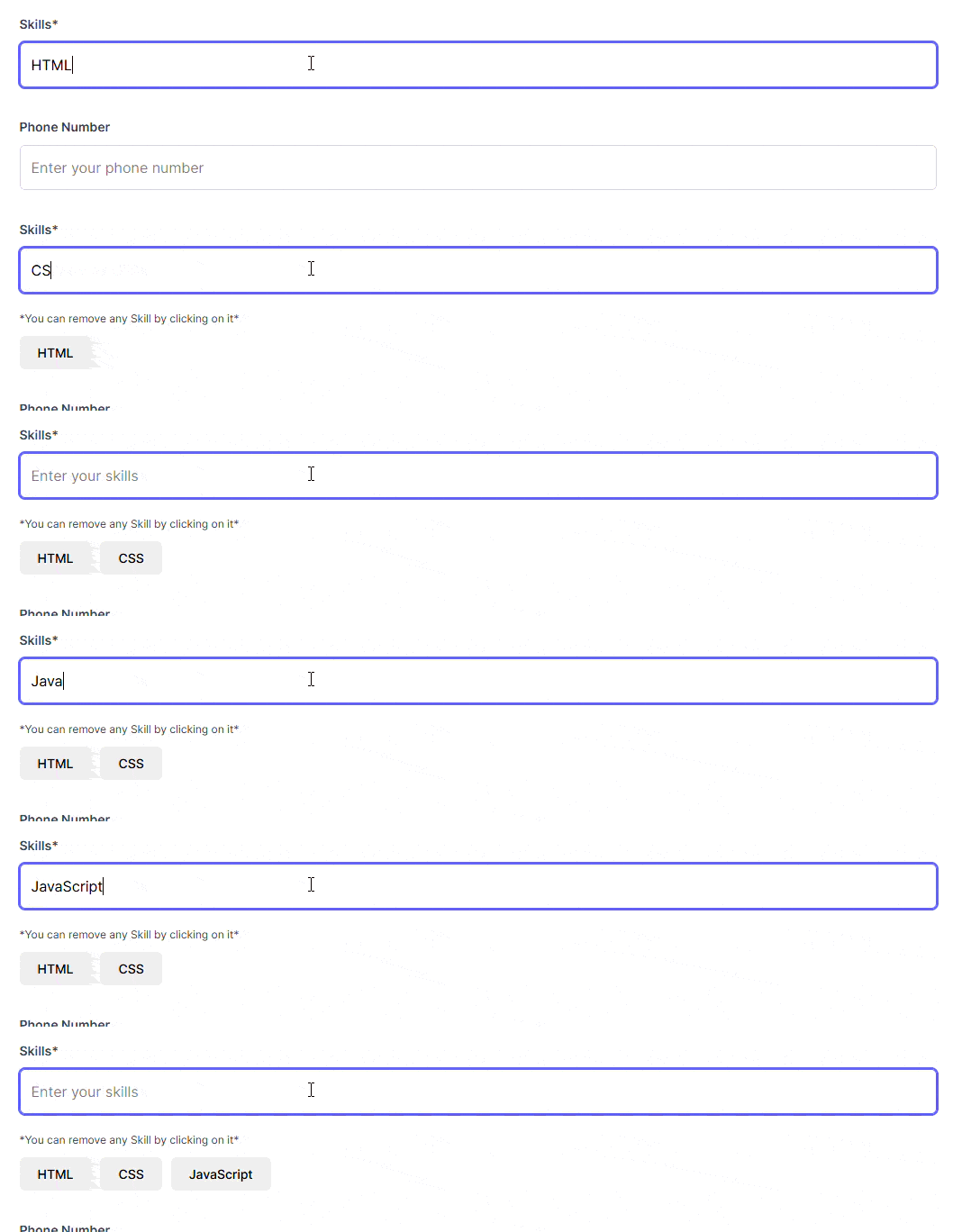
You can remove any skill by clicking on it, you can see this in the example below:

Social Links
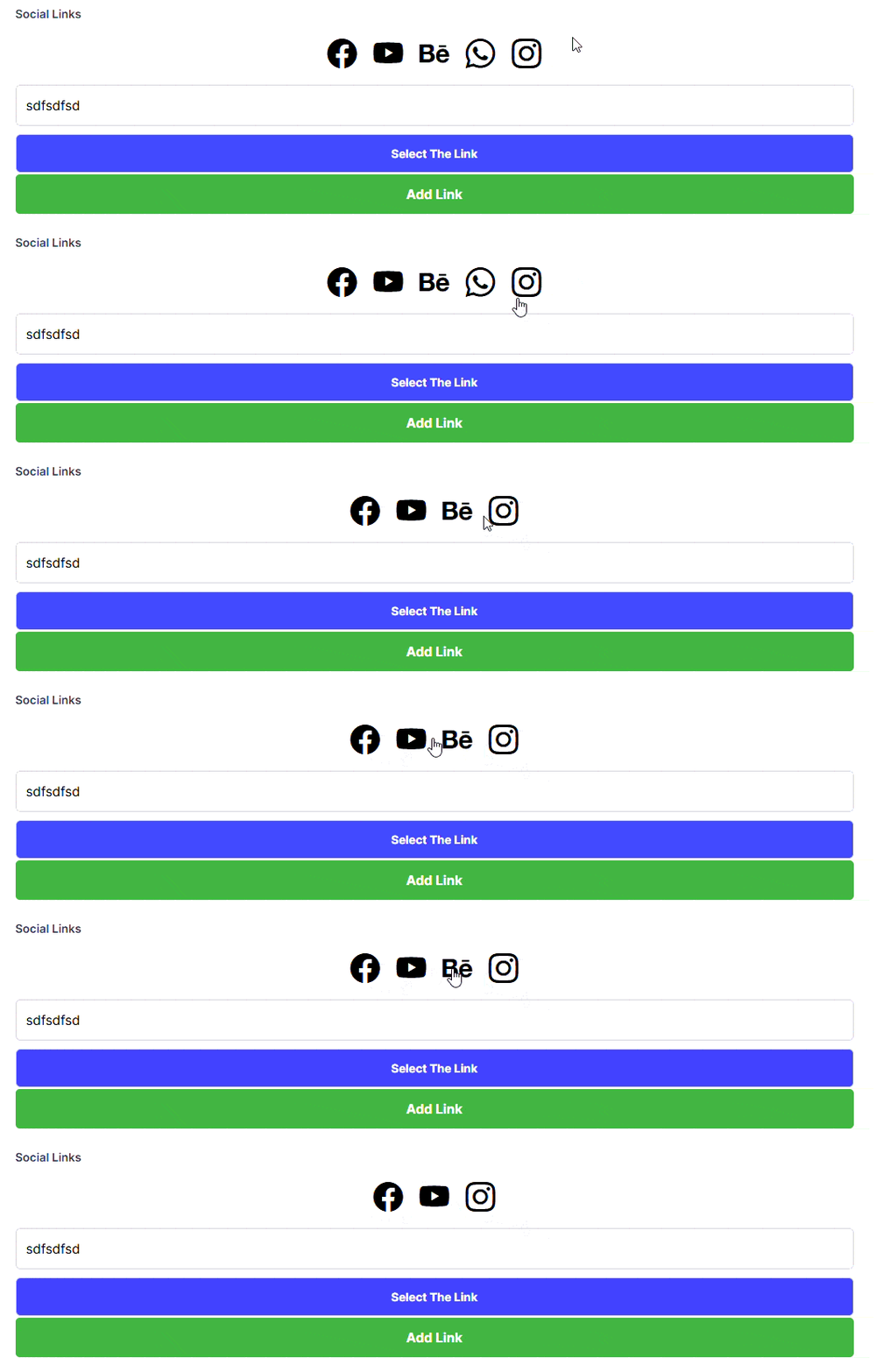
Add links to your professional profiles, such as LinkedIn, GitHub, or your personal website. Select the appropriate platform for each link and use the add option to include multiple profiles. Currently it supports LinkedIn, GitHub, Twitter, Instagram, Facebook, YouTube, WhatsApp, Behance, Dribbble, and Medium.
You can remove any social link by clicking on it.
Projects
In the projects section, showcase your work by adding project names, links, and pictures such as screenshots. Focus on your best and most relevant projects. You can edit or delete any project using the available controls.

Experience
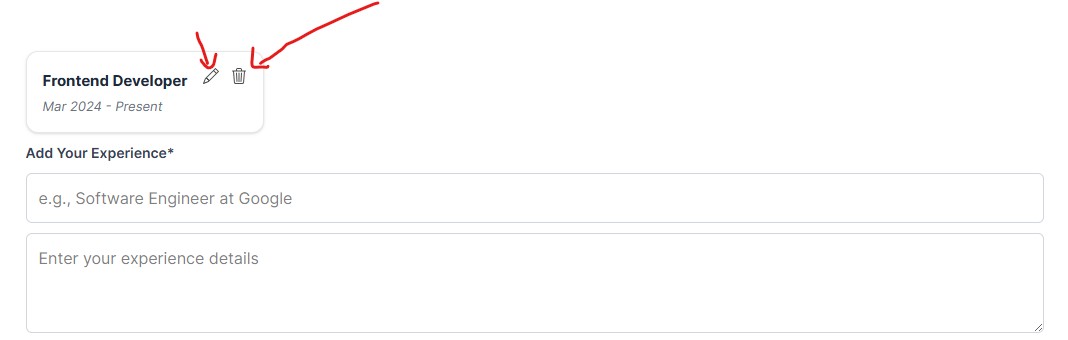
Add your professional experience by entering your role, organization, and key responsibilities. Include start and end dates, and focus on achievements that demonstrate your impact. You can edit or remove entries at any time.
Preview & Export
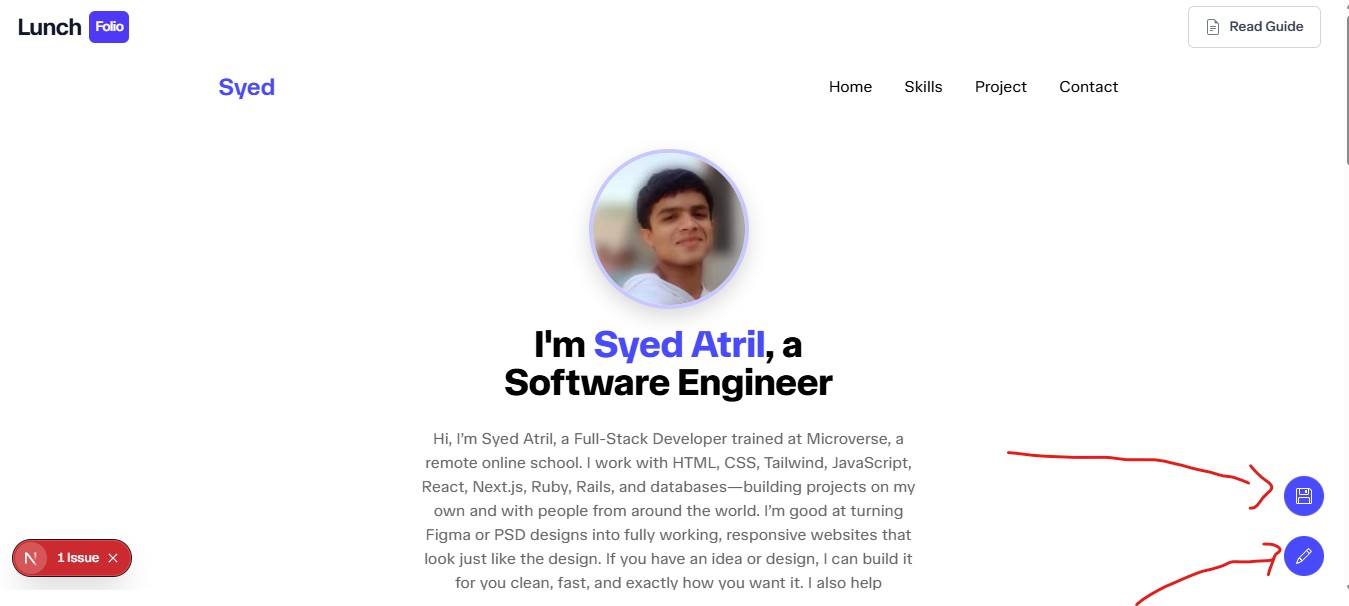
Once you have completed the form, click on Save & Preview If all required fields are filled, you will be able to preview your portfolio. If something is missing, simply complete the required fields to proceed.
On the preview page, you can review your portfolio and make edits if needed using the edit icon. When everything looks good, click the export option to download your portfolio as a ZIP file, which will be saved to your device typically in the downloads folder. It contains an index.html file and an assets folder with all the necessary files to host your portfolio on any platform that supports static websites, such as GitHub Pages, Netlify, or Vercel.
Congratulations! Your portfolio is now ready. You are just one step away from sharing it with the world.
Yes now you need to follow this guide to host your portfolio for free: How to Host Your Portfolio for Free?